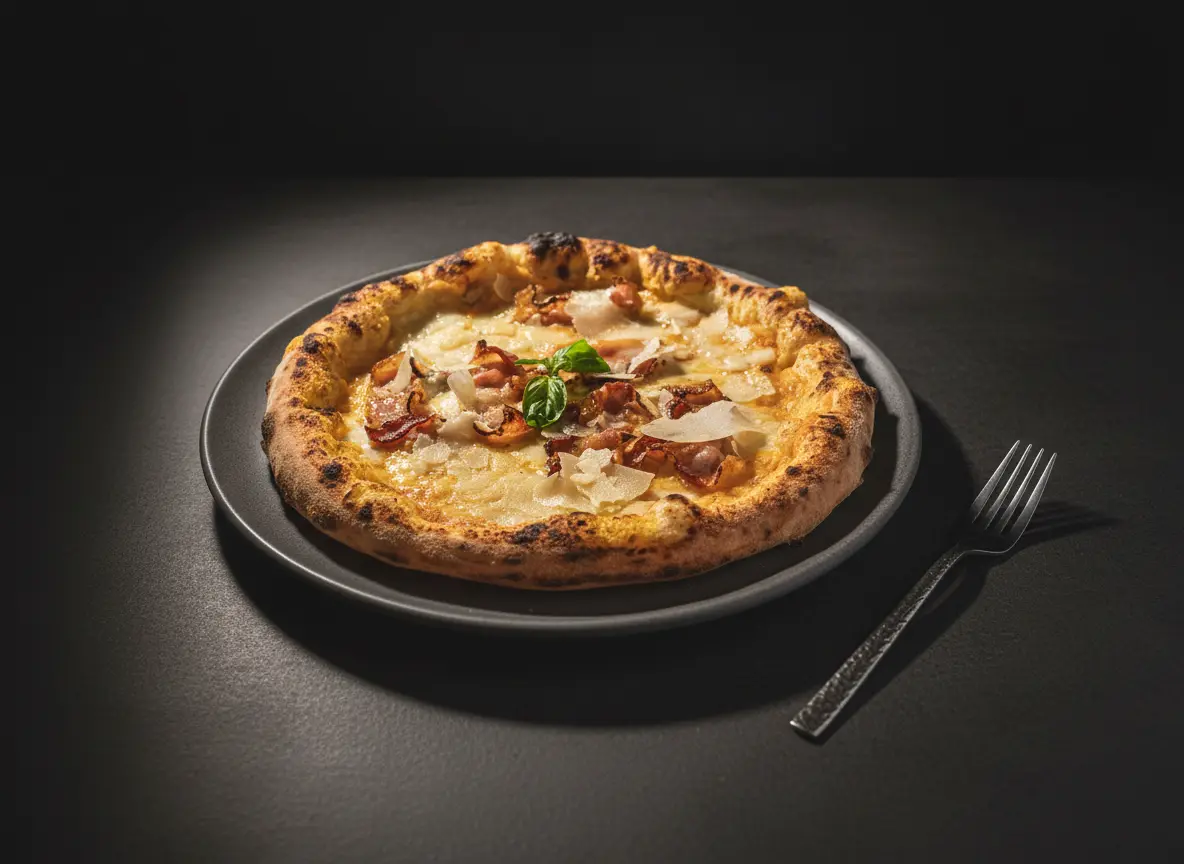
Every delivery app has its own image specifications—different sizes, aspect ratios, and format requirements. Upload the wrong size and your food photos get awkwardly cropped, stretched, or compressed into pixelated thumbnails. This guide covers the exact photo requirements for Uber Eats, DoorDash, Grubhub, Deliveroo, Glovo, and Just Eat so your menu looks sharp on every platform.
If you need broader tips on shooting for delivery platforms, check our complete guide to food photography for delivery apps.
Why Photo Specs Matter
Delivery apps display your menu photos in multiple contexts: hero banners, category grids, item detail pages, and tiny thumbnails in search results. Each context crops your image differently. If you upload a square photo to a platform expecting 16:9, the top and bottom of your dish get cut off—potentially losing the most appetizing parts.
Restaurants that upload correctly sized, high-resolution images consistently see higher click-through rates. According to industry data, optimized images can increase order conversion by 25-35% compared to poorly formatted ones.
Platform-by-Platform Specifications
Uber Eats
| Hero Image | 1920 x 1080 px (16:9) |
| Menu Item | 1200 x 800 px (3:2) |
| Minimum Size | 320 x 320 px |
| Max File Size | 5 MB |
| Formats | JPEG, PNG |
| Background | Clean, uncluttered; no text overlays or logos |
Uber Eats tip: The platform crops images to 16:9 in most views. Keep your dish centered in the frame with some breathing room on all sides to avoid losing edges when displayed in different aspect ratios.
DoorDash
| Recommended Size | 1600 x 1200 px (4:3) |
| Minimum Size | 400 x 300 px |
| Max File Size | 10 MB |
| Formats | JPEG preferred |
| Guidelines | No watermarks, borders, or promotional text |
DoorDash tip: DoorDash uses a 4:3 display ratio for menu browsing but may crop to a wider ratio in search results. Shoot slightly wider than 4:3 and keep the subject in the center third of the frame.
Grubhub
| Recommended Size | 2000 x 2000 px (1:1) |
| Minimum Size | 400 x 400 px |
| Max File Size | 10 MB |
| Formats | JPEG, PNG |
Grubhub tip: Square format means top-down or 45-degree shots work best. Avoid wide compositions that will lose the sides when cropped to 1:1.
Deliveroo
| Hero Image | 1920 x 1080 px (16:9) |
| Menu Item | 1200 x 900 px (4:3) |
| Minimum Size | 600 x 400 px |
| Max File Size | 5 MB |
| Formats | JPEG, PNG |
Deliveroo tip: Deliveroo's app uses both 4:3 and 16:9 crops depending on placement. Shoot your food centered with generous margins so it works in both aspect ratios without losing key elements.
Glovo
| Recommended Size | 1200 x 800 px (3:2) |
| Minimum Size | 400 x 300 px |
| Max File Size | 5 MB |
| Formats | JPEG, PNG, WebP |
Glovo tip: Glovo is popular across Southern Europe, Eastern Europe, and Latin America. Their app tends to display images smaller than other platforms, so make sure your food fills most of the frame for impact at small sizes.
Just Eat (Takeaway.com)
| Recommended Size | 1600 x 1200 px (4:3) |
| Minimum Size | 500 x 375 px |
| Max File Size | 10 MB |
| Formats | JPEG, PNG |
Just Eat tip: Just Eat operates across 13+ countries, and some regional versions may have slightly different guidelines. The 4:3 specs above are the global standard, but check your local partner portal for market-specific requirements.
Quick Reference: All Platforms at a Glance
| Platform | Size (px) | Ratio | Max Size |
|---|---|---|---|
| Uber Eats | 1920 x 1080 | 16:9 | 5 MB |
| DoorDash | 1600 x 1200 | 4:3 | 10 MB |
| Grubhub | 2000 x 2000 | 1:1 | 10 MB |
| Deliveroo | 1200 x 900 | 4:3 | 5 MB |
| Glovo | 1200 x 800 | 3:2 | 5 MB |
| Just Eat | 1600 x 1200 | 4:3 | 10 MB |
Universal Best Practices
Regardless of which platform you're targeting, these practices will ensure your photos look great everywhere:
1. Shoot High-Resolution, Crop Later
Always shoot at the highest resolution your camera allows. It's much easier to crop a large image down to 1:1 for Grubhub and 16:9 for Uber Eats than to upscale a small photo. A single high-resolution shoot can serve all your platforms.
2. Center Your Subject
Because each platform crops differently, place your dish in the center of the frame with margins on all sides. This ensures no critical elements are lost regardless of the aspect ratio applied. For more on framing, see our food photography composition guide.
3. Use Consistent Lighting
Bright, even lighting ensures your photos look professional at any size. Avoid harsh shadows that may look like dark spots on small thumbnails. Natural light or a simple two-light setup works for most dishes.
4. Keep Backgrounds Clean
All platforms recommend clean, uncluttered backgrounds. White, light gray, or natural wood surfaces work universally. Avoid branded elements, text overlays, and busy patterns—most platforms will reject images with promotional text.
5. Optimize File Size Without Losing Quality
Large files take longer to load in the app, hurting your visibility. Export as JPEG at 80-90% quality—this gives you excellent image quality while keeping file sizes well under platform limits. Avoid PNG for photos (PNG is better for graphics with transparent backgrounds).
Common Rejection Reasons
Delivery platforms review uploaded photos and may reject images that don't meet their guidelines. Here are the most common reasons:
- Text or logos on the image: No watermarks, price tags, or promotional text
- Collages or borders: Each menu item needs a single, standalone photo
- Stock photos: Most platforms require original photography of your actual dishes
- Low resolution: Blurry or pixelated images below minimum size requirements
- Inappropriate content: Alcohol prominently featured (varies by market), non-food items dominating the frame
- Misleading presentation: Photos that significantly misrepresent portion size or ingredients
How AI Can Help You Meet Every Platform's Requirements
Managing photos across multiple delivery platforms is time-consuming. AI tools like Platora can streamline this process by:
- Enhancing lighting and colors to meet platform quality standards
- Cleaning up backgrounds for a professional, clutter-free look
- Generating platform-optimized versions from a single source photo
- Maintaining a consistent visual style across your entire menu
- Turning smartphone photos into professional-grade images
Conclusion
Getting your photo specs right is one of the simplest ways to boost your visibility and conversion on delivery apps. Shoot high-resolution, keep your food centered, and use the platform-specific sizes in this guide to ensure every image looks its best.
For more on maximizing your delivery app presence, read our guides on how food photos increase sales and professional food photography tips.